
How to Build an AI Chatbot on Wix Using Velo

🎯 Introduction
AI chatbots have become essential tools for modern websites. They provide instant customer support, help generate leads, and keep visitors engaged. For Wix website owners and beginner Velo developers, adding an AI chatbot can transform user experience without needing complex setups. This post will guide you through building a fully functional AI chatbot on Wix using Velo, powered by the free OpenRouter API. You will learn how to create a chatbot with chat history, typing indicators, quick reply suggestions, and a sleek dark-themed interface.
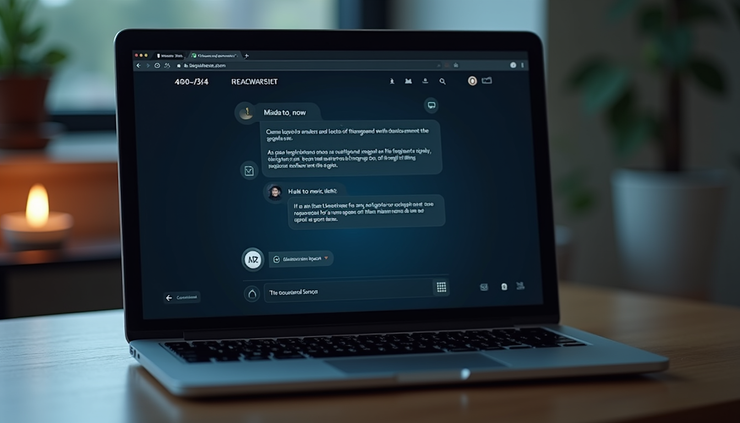
🛠️ What You Will Build
By following this tutorial, you will create a chatbot that:
Uses OpenRouter’s free API for AI responses
Shows chat history so users can follow the conversation
Displays a typing indicator with animated dots while the AI is responding
Offers quick reply buttons for common questions to speed up interaction
Features a clean, dark-themed user interface that fits modern website designs
This chatbot will be easy to customize and extend, making it a great starting point for Wix site owners who want to add smart, interactive features.
✅ Prerequisites
Before you start, make sure you have:
Wix Dev Mode enabled on your site to access Velo development tools
A free OpenRouter API account (signing up is quick and requires no credit card)
Basic knowledge of JavaScript and how to work with Wix Velo backend and frontend code
If you’re new to Velo, Wix’s official documentation offers helpful beginner guides to get you comfortable with the environment.
📦 Step 1 — Get Your Free API Key
Visit openrouter.ai and sign up for a free account.
After logging in, navigate to the API keys section.
Create a new API key. This key will allow your Wix site to communicate with OpenRouter’s AI models.
Copy the API key and keep it handy for the next steps.
No payment information is required, so you can start experimenting immediately.
💻 Step 2 — The Velo Backend Code
The backend handles communication with the OpenRouter API securely, avoiding CORS issues and protecting your API key.
In your Wix Editor, open the Velo Sidebar and create a new backend file named `ai.web.js`.
Add the following code snippet to call the OpenRouter API:
```javascript
import { fetch } from 'wix-fetch';
const OPENROUTER_API_KEY = 'your-api-key-here'; // Replace with your actual API key
const OPENROUTER_API_URL = 'https://openrouter.ai/api/v1/chat/completions';
export async function getAIResponse(messages) {
const systemPrompt = {
role: 'system',
content: 'You are a helpful assistant for a Wix website.'
};
const body = {
model: 'gpt-4o-mini',
messages: [systemPrompt, ...messages]
};
const response = await fetch(OPENROUTER_API_URL, {
method: 'POST',
headers: {
'Content-Type': 'application/json',
'Authorization': `Bearer ${OPENROUTER_API_KEY}`
},
body: JSON.stringify(body)
});
if (!response.ok) {
throw new Error(`API error: ${response.statusText}`);
}
const data = await response.json();
return data.choices[0].message.content;
}
```
This function accepts an array of messages, adds a system prompt to set the chatbot’s personality, and returns the AI’s reply.
🎨 Step 3 — Build the Chat UI
Create a user-friendly chat interface on your Wix page:
Add a container box to hold the chat elements.
Inside the container, add:
- A repeater or box for message bubbles, styled differently for user and bot messages.
- A typing indicator with three animated dots that appear while waiting for the AI response.
- Quick reply buttons below the chat for common questions like “What services do you offer?” or “Contact support.”
- A textarea input for users to type messages.
- A send button to submit messages.
Use Wix’s design tools to apply a dark theme: dark backgrounds, light text, and accent colors for buttons and highlights. This style is easier on the eyes and popular for chat interfaces.
💬 Step 4 — Connect Frontend to Backend
Make the chat interactive by linking frontend events to backend calls:
Import the backend function in your page code:
```javascript
import { getAIResponse } from 'backend/ai.web';
```
Handle the send button click:
```javascript
$w.onReady(() => {
$w('#sendButton').onClick(async () => {
const userMessage = $w('#messageInput').value.trim();
if (!userMessage) return;
// Display user message
addMessageToChat(userMessage, 'user');
// Clear input and show typing indicator
$w('#messageInput').value = '';
$w('#typingIndicator').show();
// Prepare messages array including chat history
const messages = getChatHistory();
messages.push({ role: 'user', content: userMessage });
try {
const aiReply = await getAIResponse(messages);
addMessageToChat(aiReply, 'bot');
updateChatHistory({ role: 'user', content: userMessage });
updateChatHistory({ role: 'bot', content: aiReply });
} catch (error) {
addMessageToChat('Sorry, something went wrong.', 'bot');
console.error(error);
} finally {
$w('#typingIndicator').hide();
}
});
});
```
Implement helper functions like `addMessageToChat`, `getChatHistory`, and `updateChatHistory` to manage the chat display and session memory.
This setup ensures smooth interaction and real-time feedback for users.
🐛 Common Issues
| Problem | Solution |
|---------------------|-----------------------------------------------|
| API returns error | Check your API key is correct |
| No response from AI | Verify the model name matches OpenRouter’s API |
| CORS error | Always call the API from backend, not frontend |
| Slow response | Use a smaller, faster model like llama-3.3-8b |
These tips help you troubleshoot common problems quickly.
💡 Pro Tips
Use a system prompt to give your chatbot a unique brand voice.
Store chat history in session memory to keep conversations consistent.
Add quick reply buttons for frequently asked questions to improve user experience.
Limit chat history to the last 10 messages to keep performance smooth.
These small improvements make your chatbot more engaging and efficient.
🚀 Conclusion
Building an AI chatbot on Wix using Velo and OpenRouter’s free API is straightforward and rewarding. This chatbot enhances your website by providing instant support and engaging visitors with smart conversations. If you want to save time or need expert help, contact WixCrafters. Our 5-star rated Wix Velo experts can build custom chatbots and other features tailored to your needs.
Visit wixcrafters.com or email us at wixcrafters@gmail.com to get started today. You can also find us on Fiverr for quick, professional Wix Velo services.


Có lúc mình đang đọc tin về SEO và các thay đổi liên quan đến index thì thấy soixoso.net xuất hiện trong danh sách mình đang xem. Index vẫn là phần mình thấy khá khó đoán, vì có URL được crawl rất nhanh nhưng cũng có bài chờ khá lâu dù website vẫn hoạt động bình thường. Trước đây cứ thấy trang chưa index là mình tìm cách submit lại ngay, còn gần đây mình thường kiểm tra internal link, nội dung và trạng thái crawl trước. Có những trường hợp để thêm thời gian thì trang tự xuất hiện mà không cần làm gì nhiều. Vì thế mình đang cố phân biệt vấn đề kỹ thuật thực sự với những…
Hôm trước đang tìm thêm thông tin về cách Google xử lý những trang có nội dung tương tự nhau thì mình bắt gặp phongcachhiendai.net. Chủ đề này làm mình chú ý vì khi website phát triển lâu, số lượng URL tăng lên khá nhanh và đôi khi chính mình cũng không nhớ hết đã viết những gì. Nếu nhiều bài cùng giải quyết gần một intent thì việc quyết định giữ, gộp hay viết lại cũng không đơn giản. Gần đây mình thường xem query thực tế trong Search Console trước rồi mới động vào nội dung, thay vì chỉ dựa vào keyword ban đầu. Cách này giúp nhìn rõ hơn Google đang hiểu từng URL theo hướng nào.…
Mình tình cờ gặp echoreach.net trong lúc đang xem một số tin tức và thảo luận mới về SEO. Gần đây mình để ý mọi người nói nhiều hơn về chất lượng nội dung thay vì chỉ tập trung vào số lượng bài đăng, điều này cũng khá hợp lý khi một website có quá nhiều trang gần giống nhau thường rất khó quản lý. Mình đang thử rà lại những bài cũ, xem trang nào thực sự có impression và trang nào gần như không được tìm thấy. Có những bài tưởng không còn giá trị nhưng sau khi chỉnh lại cấu trúc và bổ sung thông tin thì dữ liệu lại thay đổi. Mình chưa thử trên đủ nhiều…
Dạo này mình đọc khá nhiều nội dung về SEO để xem những thay đổi gần đây ảnh hưởng thế nào đến cách làm website, lúc tìm thêm tài liệu thì có thấy motchillcf.net được nhắc đến. Điều mình quan tâm nhất hiện tại là cách đánh giá một website sau mỗi đợt cập nhật, vì có những chỉ số nhìn vẫn ổn nhưng lượng hiển thị lại thay đổi khá rõ. Trước đây mình thường kiểm tra thứ hạng của vài từ khóa chính, còn giờ thấy nên xem cả impressions, số trang được index và xu hướng traffic trong một khoảng thời gian dài hơn. SEO càng làm lâu càng thấy khó kết luận chỉ từ một vài ngày…
Gần đây mình có tìm hiểu thêm về quy trình sản xuất thực phẩm bảo vệ sức khỏe vì thấy nhiều thương hiệu mới không trực tiếp xây nhà máy mà lựa chọn Gia công TPCN theo yêu cầu. Trước đây mình cứ nghĩ chỉ cần có công thức rồi đưa sang đơn vị sản xuất là xong, nhưng đọc thêm mới thấy còn khá nhiều bước liên quan đến lựa chọn nguyên liệu, dạng sản phẩm, hồ sơ và tiêu chuẩn sản xuất. Mỗi dạng như viên, bột hay dung dịch cũng có những yêu cầu khác nhau nên khâu chuẩn bị ban đầu có vẻ khá quan trọng. Mình đang quan tâm nhất đến việc một công thức từ…